

There are four real ways to put a WordPress site on Google Play: wrap the live site in an Android app, use a WordPress app plugin or service, package the site as a Progressive Web App with Google's Bubblewrap tool, or build a native app on the WordPress REST API. They range from an afternoon to several weeks of work, and all four hit the same Google Play checks at the end.
On 12 October 2026 we ran two public WordPress sites through our own website to app converter, using only its free live preview: the WordPress News blog at wordpress.org/news and WordCamp Central at central.wordcamp.org. The screenshots below come from those runs. They show what the tool picked up from a WordPress site by itself, what we had to add by hand, and the warnings it raised before any build.
Disclosure: NasrTech makes Nasr App Maker, the tool used here. WordPress and WordCamp are trademarks of their owners, and NasrTech isn't affiliated with them. We used their public sites as examples and published no app for them. Only the owner of a site should publish an app of it.
The four routes at a glance
| Route | Effort | What you need | You end up with | Main limit |
|---|---|---|---|---|
| Website-to-app builder (WebView wrapper) | An hour or two | The live address of your site | A native shell around your live site, with tabs, a contact page and an offline screen | Anything the browser does better: Google sign-in, push from the site, device features |
| WordPress app plugin or service | A day, plus setup on your site | A plugin on your WordPress install and an account with the service | An app built from your posts and pages, often with native lists | Your app depends on that service and its plan |
| PWA packaged with Bubblewrap (Trusted Web Activity) | A day or two, technical | A web app manifest, Node.js, JDK 17, a file on your server, your own signing key | Your site running full screen in Chrome, as a Play app | Setup is yours to maintain; a failed site check shows browser UI |
| Native app on the WordPress REST API | Weeks to months | A developer who knows Kotlin, Flutter or React Native | Real native screens fed by your content | You rebuild every screen, and page-builder layouts don't come across |
Every route ends in Google Play Console, which costs a one-time $25 registration fee (Play Console Help). If you built your site with an AI app builder rather than WordPress, our guides to publishing a Lovable app on Google Play and turning a Base44 app into an Android app cover the differences.
Route 1: wrap the live site in an Android app
A wrapper is a small native Android app whose main screen is a WebView showing your site. It loads your live pages, so a post you publish in WordPress appears in the app on the next launch. A good wrapper adds the parts a website doesn't have: a bottom bar, a native contact page, an offline screen, pull to refresh, and a Back button that walks back through pages.
This is the fastest route and the one our tool takes. The walkthrough is further down.
Pick it when your site already works well on a phone, you publish often, and your visitors mostly read, browse, fill in forms or buy physical products.
Skip it when most users sign in with Google. Google's OAuth policy says a developer "must not direct a Google OAuth 2.0 authorization request to an embedded user-agent" (Google OAuth 2.0 Policies), and an app's WebView counts as one. A social-login plugin's Google button has to open in the browser, and the session ends up there instead of in the app.
Route 2: a WordPress app plugin or service
This category works the other way round. In the usual setup you install a plugin on your WordPress site, the plugin sends your posts, pages and sometimes WooCommerce products to the service, and the service builds an app with native lists and article screens from that data. Some also wrap individual pages in a WebView where their native screens stop.
We don't name or price these services here, because their plans change often. Before you sign up, ask each one:
- Does the app stop working, or vanish from Google Play, if you stop paying?
- Is the app published under your own Google Play developer account, with an app ID (package name) you choose?
- Can you get a copy of the upload key, so you can move to another tool later without a new listing?
- Which plugins does it support? Ask about your page builder, membership plugin and custom post types by name.
Route 3: a PWA, packaged with Bubblewrap
A Trusted Web Activity (TWA) opens "your web-app content such as your Progressive Web App (PWA) from your Android app", rendered by the browser and run full screen (Chrome for Developers). Google's free command-line tool, Bubblewrap, turns your site's web app manifest into an Android project:
npm i -g @bubblewrap/cli
bubblewrap init --manifest=https://your-site.com/manifest.json
bubblewrap build
According to the Bubblewrap README, it needs Node.js 18 or newer and JDK 17, it asks for the details to create a signing key during init, and build outputs a signed APK and a signed App Bundle (app-release-bundle.aab) for Google Play.
What WordPress owners trip on:
- The manifest. Your theme or a PWA plugin has to serve a web app manifest with a name, icons and a start URL. The site must meet Chrome's install requirements, and the TWA overview suggests checking them with Lighthouse.
- The ownership file. Upload
assetlinks.jsonto/.well-known/assetlinks.jsonat your site's root (quick start guide). WordPress's media library can't put a file there, so you'll need FTP or your host's file manager. If the check fails, the app opens as a Custom Tab with browser UI at the top of the page. - The key is yours alone. Lose it and you lose the ability to update the app.
Pick it when you're comfortable on the command line and want Chrome itself to run your site. Because it is Chrome, Google sign-in works inside the app.
Route 4: a native app on the WordPress REST API
WordPress has a built-in REST API that sends your content as JSON. Its handbook says developers can use it to build "mobile apps, or desktop or command line tools", in any language that can make HTTP requests (REST API Handbook). Every front-end page advertises where the API lives with a Link header (discovery docs). On WordPress News it points to https://wordpress.org/news/wp-json/, and this request returns the two newest posts:
curl "https://wordpress.org/news/wp-json/wp/v2/posts?per_page=2&_fields=id,date,link,title"On 12 October the first result was "WordPress 7.1.3 Maintenance and Security Release", and the X-WP-Total response header counted 1,110 posts. A native app reads lists like this and draws its own screens.
That control has a cost. Every screen, from the post list and article view to search, categories, comments and the shop, is code someone writes and maintains. Shortcodes and page-builder layouts arrive as HTML that a native screen has to render or skip. For signed-in features, the authentication docs say built-in cookie authentication works only inside WordPress itself. Remote apps need Application Passwords (available since WordPress 5.6) or an authentication plugin.
Pick it when the app needs to do things the site can't: offline reading of saved articles, native push for new posts, or a reading experience you design from scratch.
Step by step: a WordPress site in Nasr App Maker
These are the steps we took on 12 October, on the live tool, with the free preview only. We built no test APK.
1. Type your address and let it read the site
Open the website to APK builder and type your domain. For wordpress.org/news the reader returned, in a few seconds:
- the name WordPress News and the description from the site,
- a 1000 px icon from the site's own icon tags,
- the home page plus seven pages from the header menu: Showcase, Plugins, Themes, Hosting, News, Get WordPress and About,
- links to its Instagram, Facebook, X, LinkedIn and TikTok accounts, but no phone number or email,
- a suggested app ID,
org.wordpress.app.
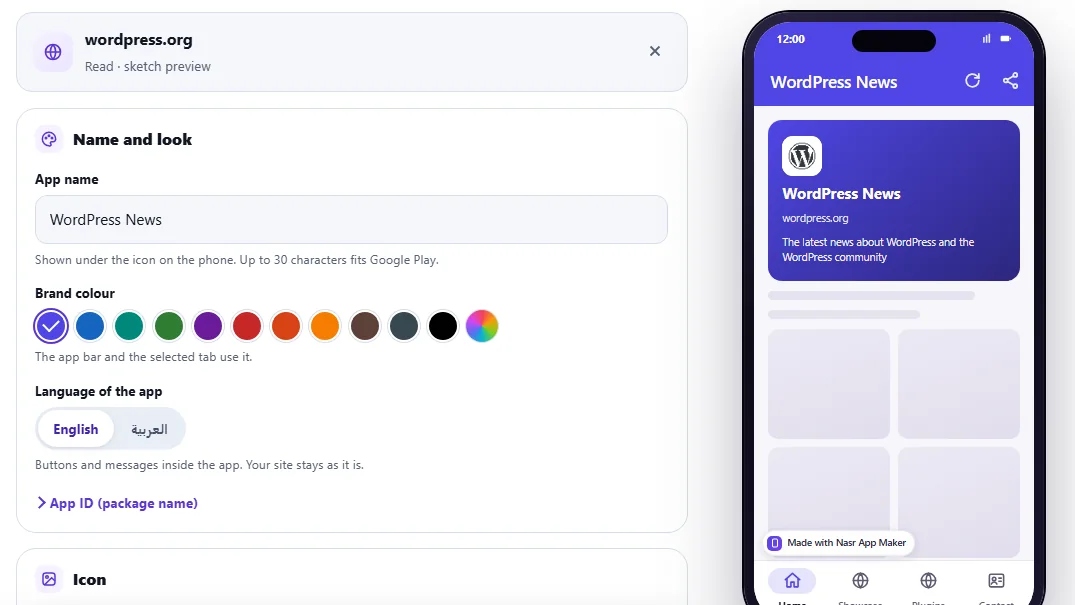
WordPress sends its menu as plain links in the page's HTML, so the reader can find it without running any scripts. That's the big difference from a Lovable site, where the menu only appears after JavaScript runs.
2. Why the preview may be a sketch
The phone above shows a sketch, not the site. WordPress News sends X-Frame-Options: SAMEORIGIN, a header that tells browsers not to show the page inside a frame on another site (MDN). Our preview is a frame, so it can't show the page. An Android app loads the site directly rather than in a frame, and the tool's note says so: "in your app the site opens in full".
To see whether your own site sends the header:
curl -sI https://your-site.com | grep -i x-frame-optionsWordCamp Central sends no such header, so its preview showed the real site at phone width, labelled Live preview.
3. Choose the tabs
The bottom bar holds up to five tabs, and the native contact page is always the last one. The tool started WordPress News with Home, Showcase, Plugins and Contact, and offered the other menu pages as chips. We renamed Home to News, gave it the News icon, and added Themes from the chips.
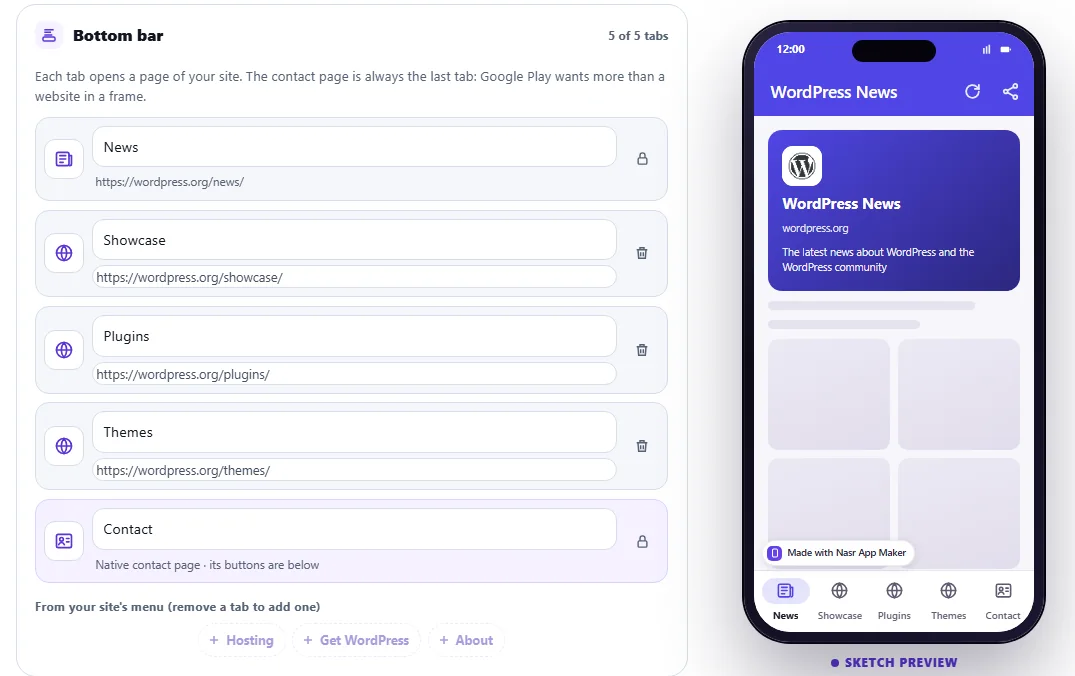
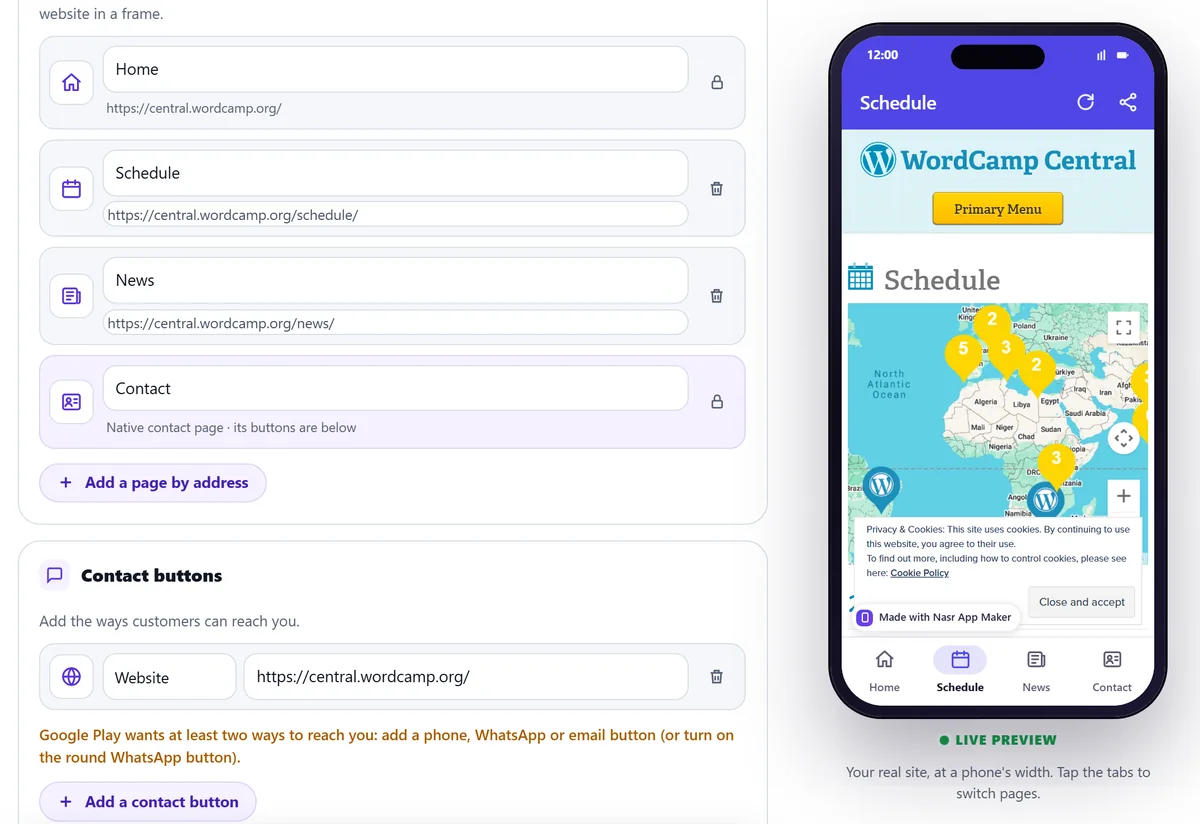
Not every WordPress site gives up its menu this easily. WordCamp Central shows Home, News, Schedule, About and Contact Us in its header, but the reader returned only the home page. Add a page by address fixed it: we pasted /schedule/ as Schedule with the Calendar icon and /news/ as News. The live preview opened the Schedule tab with its real event map. The site's own cookie notice appeared too, because the app shows whatever the site shows.
4. Add two real ways to reach you
The orange line in that screenshot is the editor's own warning. WordCamp Central's only contact button was its website, and the tool asks for at least two ways to reach you, such as a phone, WhatsApp or email button. Use real details. On WordPress News the social links counted, so the warning never appeared.
5. Set the app ID, icon and colour
Open App ID (package name) and replace the suggestion with your own reversed domain, such as com.yourblog.app. Google Play never lets you change an app ID after the first upload. For WordCamp Central the icon section said "None found" and offered a letter icon in your colour. Upload a square logo of at least 512 px instead (the Google Play icon resizer makes every size from one image). Pick a brand colour for the app bar and the selected tab. If your readers use Arabic, the app's own buttons and messages can be in Arabic, and the tool has an Arabic version of the website to app page.
6. Test on your phone, then run the free Google Play check
Build test APK, free gives you three test builds a month, each with a QR code to install it. Test builds carry a small "Made with Nasr App Maker" badge. After a test build, the Free Google Play check reviews the app before you pay. It checks for a bottom bar with two or more pages, a native page, working contact buttons, an offline screen, HTTPS on every page, an app name with no brand in it, and proof that you own every domain the app wraps. Our Base44 test shows what the check's report looks like. The hosted privacy page, the listing drafts and the Data safety file come free with a test build. A paid plan adds the two files Google Play needs from you: the signed bundle (.aab) without the badge, and your own upload key, which you can export.
What works in a wrapped WordPress app
| On your WordPress site | Inside the wrapped Android app |
|---|---|
| Posts, pages, categories, search | Work. They're your live pages |
| Comments and contact forms | Work, and they count as data you collect (see Data safety below) |
| WooCommerce cart and checkout for physical goods | Work, with your own payment gateway |
| Selling memberships, courses or other digital content | Needs Google Play's billing inside an Android app; a wrapper can't add it |
| Email and password login | Works, and the session stays in the app |
| "Sign in with Google" from a social-login plugin | Opens in the browser, and the session stays there |
| Cookie banners and pop-ups | Show in the app, as they do on a phone browser |
| Links to other sites | Open outside the app |
The payments row comes from Google's Payments policy: apps that sell digital content "must use Google Play's billing system for those transactions", and Play billing must not be used for "the purchase or rental of physical goods". A WooCommerce shop selling physical products is fine. A paid-membership blog needs a different plan for its app.
What Google Play checks, whichever route you take
Your app has to do something. Google's Functionality, Content, and User Experience policy says "We do not allow apps that only have limited functionality and content", and gives "text only or PDF file apps" as an example. A lone WebView of one page risks this rejection. Tabs, a native contact page and an offline screen are how a wrapper earns its place.
It has to be your site. Google's Spam policy rules out apps that "provide a webview of a website without permission from the website owner or administrator". Wrap your own WordPress site, not a theme demo, a competitor or someone else's blog.
A privacy policy, in two places. The User Data policy requires "a privacy policy link in the designated field within Play Console" and "a privacy policy link or text within the app itself". The free privacy policy generator writes one you can publish as a WordPress page.
Data safety, including what your site collects. Google's Data safety help says every published app must complete the form, even one that collects nothing. It also covers "user data collected from a webview which has been opened from your app" when your app controls what that webview shows, which is the case when it shows your own site. So declare what your WordPress site collects: comment and form fields, WooCommerce orders, newsletter sign-ups, and what analytics plugins send. Google Play Data safety explained walks through the form.
The closed test for new personal accounts. A personal developer account created after 13 November 2023 must run a closed test with at least 12 testers, opted in continuously for at least 14 days, before it can apply for production (Play Console Help). Plan two to three weeks for it. Our guide to the Google Play 12 testers rule explains how to get through it.
Frequently asked questions
Can I turn a WordPress site into an Android app for free?
Yes, with the PWA route: Bubblewrap and the Trusted Web Activity are free, and you pay only Google's $25 developer fee. It takes some command-line work and a file on your server. Our tool's live preview and three test APKs a month are also free. With our tool you pay for the Google Play bundle and upload key, on top of Google's fee.
Do I have to rebuild the app every time I publish a post?
Not with a wrapper or a TWA. Both load your live site, so new posts appear on the next launch. Rebuild only to change the app's name, icon, colour, tabs or contact buttons. A native REST API app shows new posts too, but a new type of content needs new code.
Will my WordPress plugins work inside the app?
Plugins that run on the server and output normal pages work, because the app shows those pages: SEO, caching, forms, WooCommerce, galleries. Plugins that depend on browser features can behave differently. Google sign-in is the clearest case.
My site's preview says "We couldn't open that site". What now?
When we tried another well-known WordPress news site, its server answered our reader with a 403 error. Open your address in a browser to check that it loads. If it does, look at your host's firewall or your security plugin's blocked-requests log, since something there refused the request.
Is there an iOS version?
Not from our tool. Nasr App Maker builds Android apps only, on the web and in its Android app on Google Play. Bubblewrap is Android-only too. A native app or some plugin services can target both.
The bottom line
For most WordPress sites, wrapping the live site is the shortest path to Google Play: the menu you already have becomes the bottom bar, and every post you publish reaches the app with no rebuild. Use a PWA with Bubblewrap if you want it free and can handle a signing key and an assetlinks.json file. Go native on the REST API only when the app has to do things your site can't. Whichever route you choose, the same checks apply: an app that does more than show one page, your own domain, a privacy policy, an honest Data safety form and, on a new personal account, 14 days of closed testing. Type your address into the WordPress to APK converter to see your own site as an app before you decide.