
Every store image. Under a minute.
You have better things to do than build store screenshots one by one. Open your project, pick a style, press Export. Store Kit captures the app and makes the icon, the feature graphic and every phone and tablet screenshot in a professional style, each file checked against the Play rules. Measured on a real listing: 27 files in 50 seconds. The grind is ours.
Version 0.2.4 · 53 MB zip, no installer — unzip and run store_kit.exe · Windows 10/11 · exporting the files is $4.99 one-time during the launch offer (normally $19)
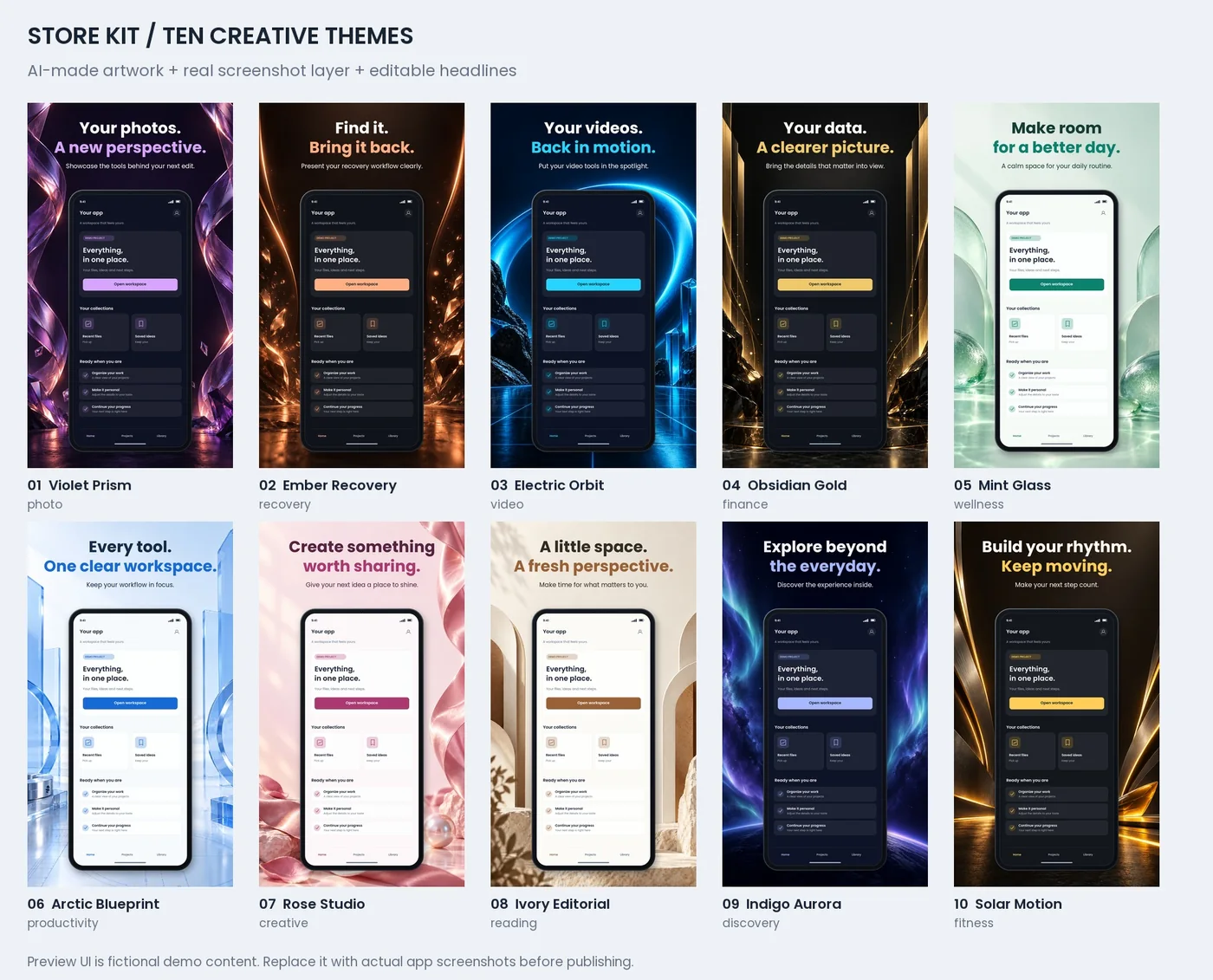
A Google Play screenshot generator with ten professional styles
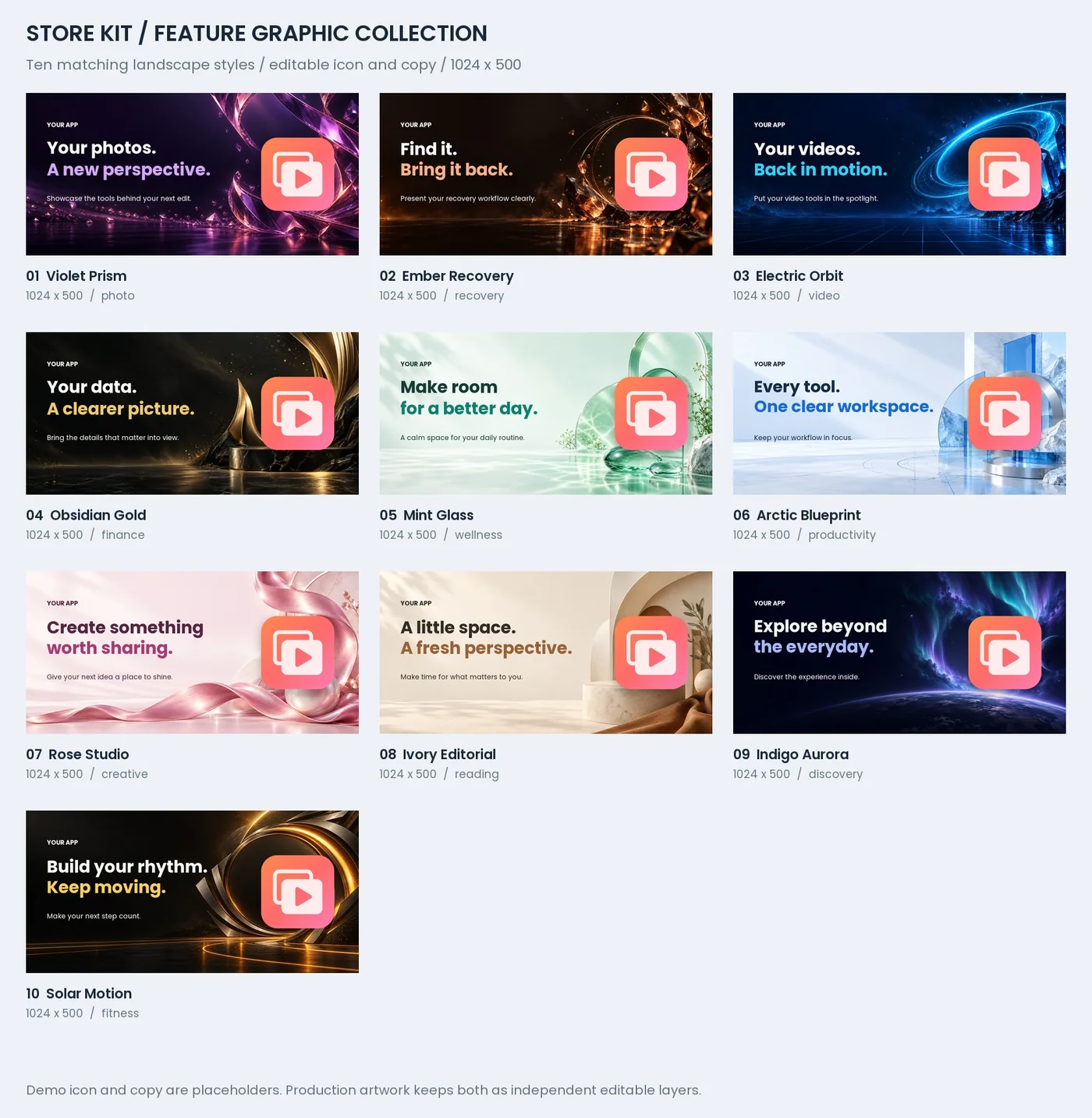
Pick one style and the whole listing follows. Every style is a full set: background, device frame, headline and subtitle, finishing-touch props — and a matching 1024×500 feature graphic that takes your real icon and your words. Your screenshots drop into the phone. The artwork, layout and typography are already done, and every Play Store screenshot in the listing matches.
Four clicks, not four hours
Measured on Burner & Temp Box: open the project 3 s, auto-capture 26 s, export 21 s — 27 finished files. The defaults are chosen for you: the style from your brand colour, the words from your app's category, the props from the style. Change anything with one click, or change nothing.
Store Kit reads the app name, package, version, the launcher-icon master and the brand colours straight from the code. Drop the folder, done.
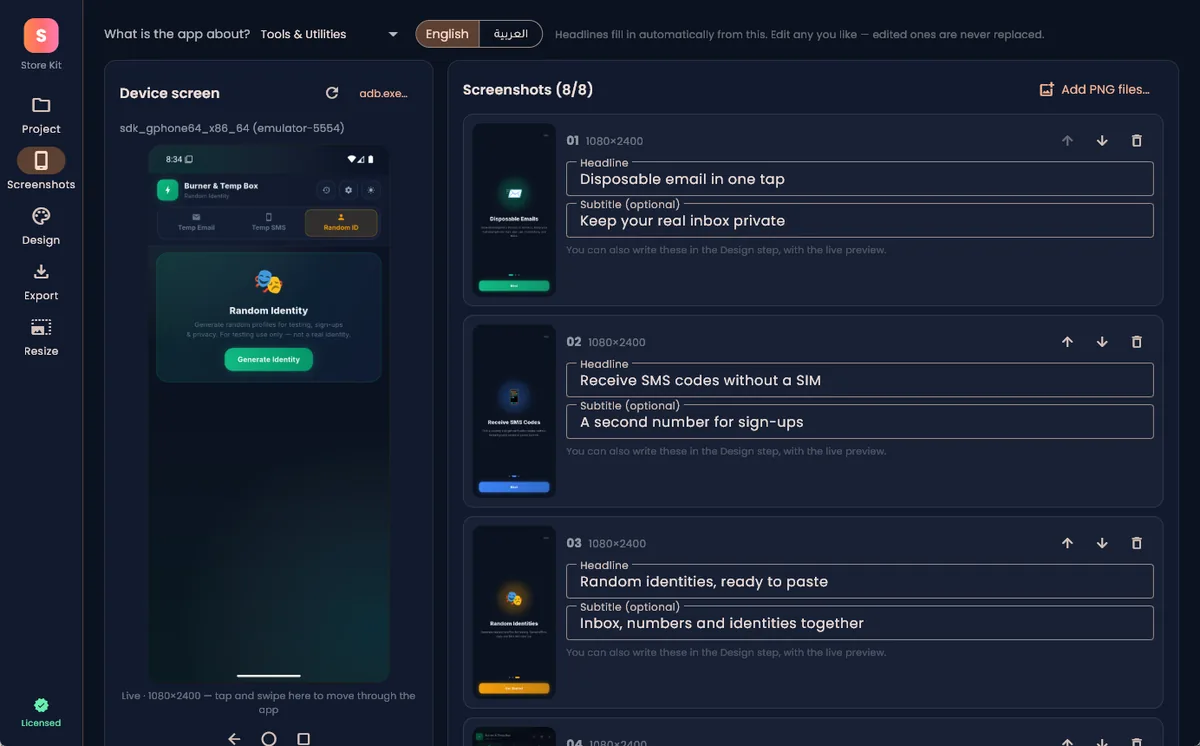
Press Auto-capture: Store Kit walks your app and keeps up to 8 distinct screens on its own. Prefer to choose? The live device screen is inside the app — tap through it and press F9 on the screens you want.
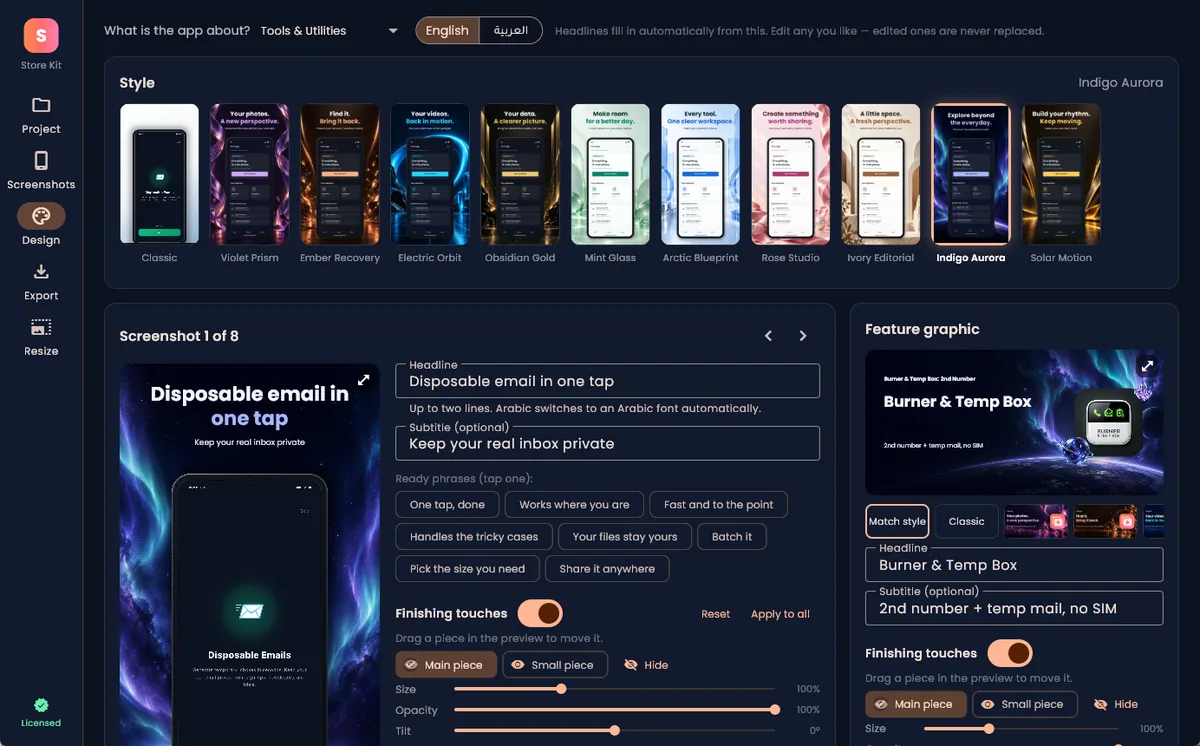
One click. Ten professional themes with device frames, matching feature graphics and finishing-touch props. Headlines fill in from your app's category, in English or Arabic; edit any, or none.
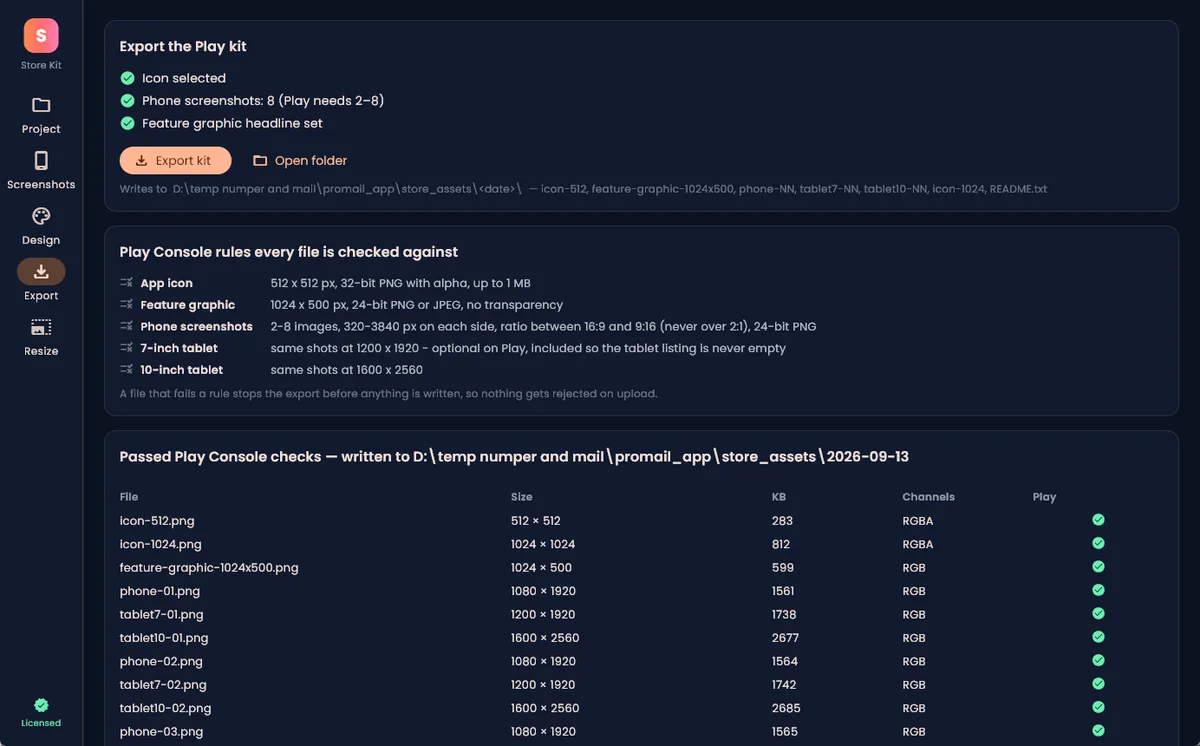
One button. icon-512, icon-1024, feature-graphic-1024x500, phone, 7-inch and 10-inch tablet sets, plus a README saying where each file goes in Play Console — 27 files in 21 seconds.
The emulator, inside the tool
No alt-tabbing. The device screen is live in Store Kit — click to tap, drag to swipe, Back / Home buttons underneath. What you see is exactly what gets captured, and an identical screen is refused so you never end up with the same shot twice.
- Auto-capture (beta): taps tabs and buttons, skips anything that looks destructive, keeps only screens that differ.
- Pick what the app is about once — every screenshot gets a headline and subtitle immediately.
Design that is already done
The style closest to your brand colour is preselected. The preview is the export painter itself, so what you see is the file. Drag the finishing-touch props, resize or tilt them, or switch them off. Arabic text switches to an Arabic font and right-to-left layout on its own.
- 10 screenshot styles · 10 feature-graphic layouts · classic brand-colour gradient
- Ready phrases for 12 app categories, English and Arabic
- Click any preview to see it full size
Nothing gets rejected on upload
Every file is checked against the Play Console rules before it is written — size, colour depth, alpha, file weight, ratio. A file that fails stops the export; nothing half-written, nothing to fix after a rejection.
- Icon 512×512 32-bit PNG under 1 MB, plus 1024 for iOS
- Feature graphic 1024×500, 24-bit, no transparency
- Phone 9:16, 7″ tablet 1200×1920, 10″ tablet 1600×2560
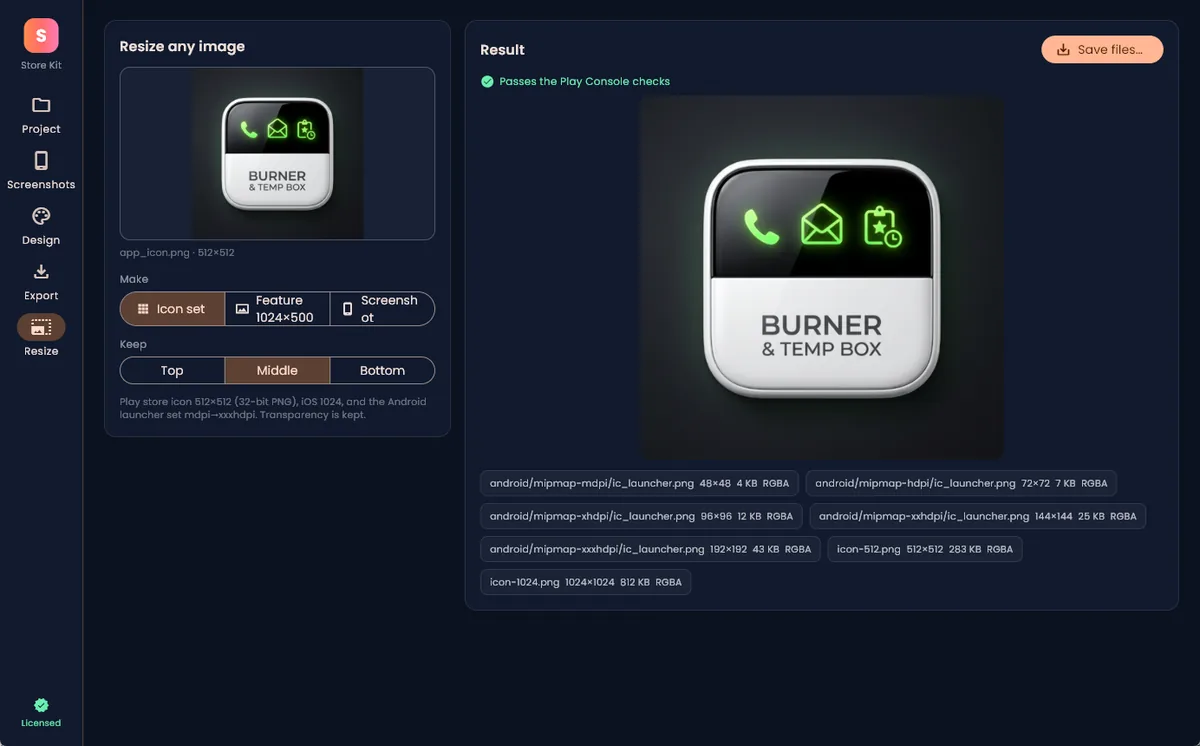
Resize anything, no project needed
Drop a logo or a raw phone screenshot. Get the full icon set (Play 512, iOS 1024, Android mdpi→xxxhdpi), a 1024×500 feature graphic, or a 20:9 capture fixed to 9:16 — cropped where you say, or padded with a blurred copy.
- The same checks as the export
- Right-click → Open with Store Kit works on any image
Everything in the box: icon, feature graphic, phone and tablet screenshots
Flutter and native Android. Name, package, version, icon master (prefers the flutter_launcher_icons source), colours from colors.xml or the Dart theme.
Tap, swipe, Back, Home, Recents — from inside Store Kit. Capture with a button or the F9 hotkey, even while the emulator window is focused.
Walks your app by tapping tabs and safe buttons, never switches, purchases or deletions. Keeps up to 8 screens that actually differ.
Device frames, art-directed backgrounds, a hero and an accent prop per style you can drag, resize, tilt or hide. Same compositor for preview and export.
Ten 1024×500 layouts with your real icon, app name, headline and subtitle — mirrored automatically for Arabic.
Pick the app's category; every screenshot gets a headline and subtitle. 12 categories × 8 phrases, English and Arabic, all offline. Your edits are never overwritten.
Icon, feature graphic, phone and tablet rules from the Play Console, applied to every byte. A failing file blocks the export.
Any image → icon set, feature graphic or a fixed 1080×1920 screenshot. Handles the 20:9 → 9:16 problem that gets raw captures rejected.
Store Kit records the taps that produced each screen. New version: open the kit, press Recapture all, export. It relaunches the app, repeats the route and replaces every image in place — headlines, crops and props stay. Measured: 8 screens in 75 s, unattended.
State lives in .storekit/ inside your repo with relative paths, so a moved folder or another PC keeps every screen and its words. Dated backups, one folder per export, a missing file is shown and fixable — never silently dropped.
Free to try. Pay once when you export.
Download the app, open your project, capture, style, preview — all free, forever. The paywall appears at one moment only: when you press Export. Launch offer: $4.99 instead of $19 until 13 October 2026 — applied automatically at checkout.
Free preview
- Open any Flutter / Android project
- Live emulator mirror, F9 capture, Auto-capture
- All 10 styles, feature layouts, phrases and props
- Full-size previews (watermarked, screen capture blocked)
Export licence
- Unlimited exports, every app, every update
- Icon 512 + 1024, feature graphic, phone + 7″ + 10″ sets
- Resize tool saves to disk
- Watermark and capture block lifted
- 30-day refund, no questions
Google Play screenshot sizes and the rules it enforces
The exact checks every exported file passes before it is written. The full spec, with the 2:1 ratio trap explained, is in Google Play screenshot sizes (2026).
| Asset | Rule | Store Kit writes |
|---|---|---|
| App icon | 512 × 512 px, 32-bit PNG with alpha, ≤ 1 MB | icon-512.png (+ icon-1024.png for App Store Connect) |
| Feature graphic | 1024 × 500 px, 24-bit PNG or JPEG, no transparency | feature-graphic-1024x500.png |
| Phone screenshots | 2–8 images, 320–3840 px per side, ratio between 16:9 and 9:16, 24-bit PNG | phone-01…08.png at 1080 × 1920 (or 1242 × 2208 / 1440 × 2560) |
| 7-inch tablet | same ratio rules | tablet7-NN.png at 1200 × 1920 |
| 10-inch tablet | same ratio rules | tablet10-NN.png at 1600 × 2560 |
Image by image vs Store Kit
The time you spend on store images is time not spent on the app.
| By hand (icon tool + design app + renaming) | Store Kit | |
|---|---|---|
| First kit for an app | 60–120 min, one image at a time | under a minute — measured 50 s for 27 files |
| Kit after an update | 30–60 min, every screenshot again | ≈ 2 min: open, Recapture all (8 screens in 75 s), export |
| Design decisions to make | dozens, per image | one: the style |
| Tablet sets | usually skipped | included, free |
| Files rejected on upload | some, every time | 0 — validated before writing |
| Screenshot with the wrong ratio | found out at upload | never leaves the app |
Questions
Is Store Kit free?
The app is free to download and use: open a project, capture the emulator, pick a style, preview everything. Writing the export files needs a one-time licence — $4.99 during the launch offer (until 13 October 2026), $19 afterwards — with a 30-day refund. There is no subscription.
Which projects does it read?
Flutter projects (pubspec.yaml plus the Android module) and native Android projects with a Gradle app module. It reads the app label, applicationId, version, the launcher icon master and the colours from colors.xml or the Dart theme. Anything it guesses wrong is one click to change.
Does it need an emulator?
For capturing, yes: an Android emulator or a phone with USB debugging, reachable through adb. Store Kit finds adb from the Android SDK automatically (or point it at adb.exe). You can also add PNG screenshots you already have.
Why does my raw emulator screenshot get rejected by Play?
Modern phones capture at 20:9 — 1080 × 2400 is a 2.22:1 ratio. Google Play only accepts screenshots between 16:9 and 9:16, so anything over 2:1 is rejected. Store Kit composes screenshots on a 9:16 canvas, and the Resize tool crops or pads a raw capture to 1080 × 1920.
What happens to my screenshots when the app changes?
Store Kit keeps the route — every tab and button it tapped to reach each screen. After an update, Recapture all launches the app, replays the route and swaps each screenshot in place; headlines, crops and props are kept. A single screen can be recaptured or relinked from the row. Real tablet captures can be attached per screenshot (Capture as 7-inch / 10-inch); without them the tablet sets reuse the phone captures and the export says so.
Does it upload my project or screenshots anywhere?
No. Everything is rendered on your PC and written to a store_assets folder inside your project. The only network calls are verifying a licence key once, and anonymous usage events (counts and style ids — never project names, paths or your text).
Windows says "Windows protected your PC" — what now?
The build is not code-signed yet, so SmartScreen shows that on first run. Click More info → Run anyway. The zip contains only the app folder; nothing is installed system-wide.
Mac or Linux?
Windows 10/11 only for now. Free web tools that run in any browser: Google Play icon resizer, feature graphic resizer.
Free web tools and guides for single files
One icon or one graphic, no app to install — and the specs behind them.