
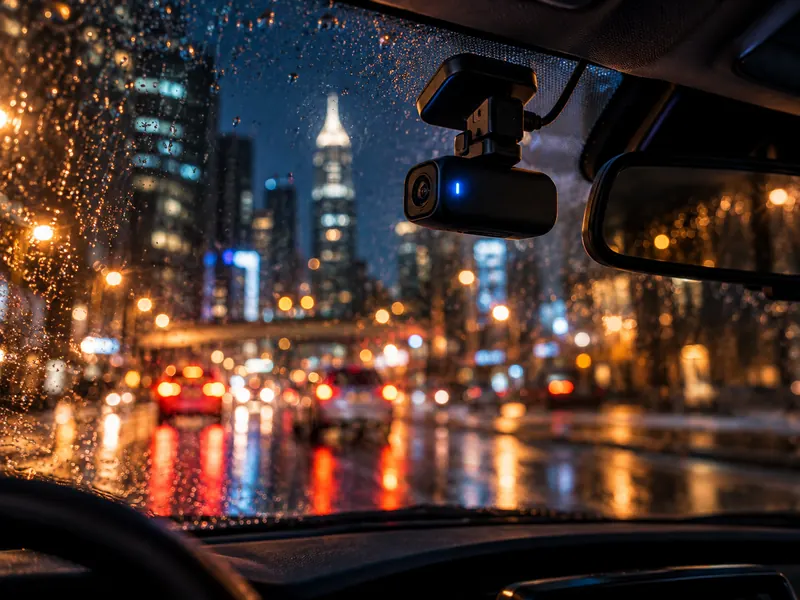
Why the clip you need is the one that broke
A dash cam records in short loops, usually one to three minutes per file, and closes each file by writing its index, called the moov atom. The index lists where every frame sits and which settings the camera used. The clip that was recording when the power went never got its index. A crash, a hardwire kit cutting power, a camera that froze or a card pulled out all stop it the same way, and the clip that matters is often that last one.
The footage is on the card; the map to it is missing, so the camera's app, your phone and your computer refuse the file. The tool on this page builds a new index around that footage. It re-encodes nothing, so the picture and sound are the camera's own, byte for byte.
What we tested it on
We took real recordings from these cameras, removed the index from each, and repaired them with the tool. Every frame came back identical to the original, compared frame by frame:
| Camera | Video | Result |
|---|---|---|
| 70mai, front camera | 4K H.265 (HEVC) | Picture identical |
| 70mai, rear camera | 1080p H.265 with sound | Picture and sound identical |
| Tesla, front camera | 1280×960 H.264 | Picture identical |
| Tesla, rear camera | 1280×960 H.264 | Picture identical |
Tesla's cameras record no sound, so there is none to bring back.
Get the clip off the card before it's overwritten
Loop recording deletes the oldest clips to make room. Take the card out of the camera as soon as you can, and copy the files to a computer before anything else.
- Turn the camera off, take out the card and put it in a card reader.
- Find the clip by its date and time. Most dash cams keep normal, event and parking clips in separate folders, with names like Normal, Event or Parking.
- Copy the broken clip and one normal clip from the same camera to your computer.
- Leave the card unformatted until you have a repaired file that plays.
On a two-camera dash cam, the front and rear cameras record separate files at different resolutions. Take the normal clip from the same camera as the broken one: front for front, rear for rear.
For a Tesla, plug the USB drive into a computer and open the TeslaCam folder. Clips sit in RecentClips, SavedClips and SentryClips, one file per camera, named with the date, time and camera (front, back, left_repeater, right_repeater).
Repair it in your browser
- Open the broken copy in the checker on this page. Your browser reads the file from your disk and never uploads it.
- If the checker asks for a reference clip, give it the normal clip from the same camera. Many dash cams keep their encoder settings only in the index, so the tool borrows them from a healthy clip, and that clip brings the sound back when needed.
- Read the result. The checker tells you whether it found the footage and how much of the recording it can rebuild. This step is free.
- Watch the free 5-second preview. It plays at reduced quality with a watermark, enough to see that your footage is back.
- Download the full video with a paid plan: one video, 3 months or 1 year, and you can cancel anytime. If the repaired video doesn't play, you get a refund.
What it can't bring back
- BlackVue clips. BlackVue files carry a second, smaller video inside, and the tool doesn't read that layout yet.
- AVI and TS files, which some older dash cams record. The tool reads MP4 and MOV.
- GPS, speed and G-sensor data. The repaired file has the picture and the sound only.
- Clips that loop recording has already overwritten, and 0-byte files.
- A card or USB drive your computer can't read at all. That is damage to the drive, not to the video, and the files have to be copied off before any repair.
If the checker says it can't rebuild your file, you haven't paid anything.