You have a scanned contract in three separate PDFs, and the form says "upload one file." Or a stack of receipts, each its own PDF, that your accountant wants as a single document. Merging PDFs is the fix β€” and you can do it in under a minute without sending your private papers to a website you've never heard of.

The fast answer: you don't need a paid app or a sketchy "free" site to combine PDFs. Your computer and your phone already have tools that do it locally, and the few good web tools merge files right inside your browser without uploading anything. Here's how to pick the right one and do it cleanly.

First decide: does the file ever need to leave your device?

This is the question most "merge PDF online" guides skip, and it's the one that matters. Many free online mergers work by uploading your file to their server, combining it there, and handing back a download. For a meme, fine. For a contract, a medical record, or anything with a name and a number on it, that's your data sitting on someone else's machine.

Two safer rules of thumb:

Method 1: In your browser, without uploading

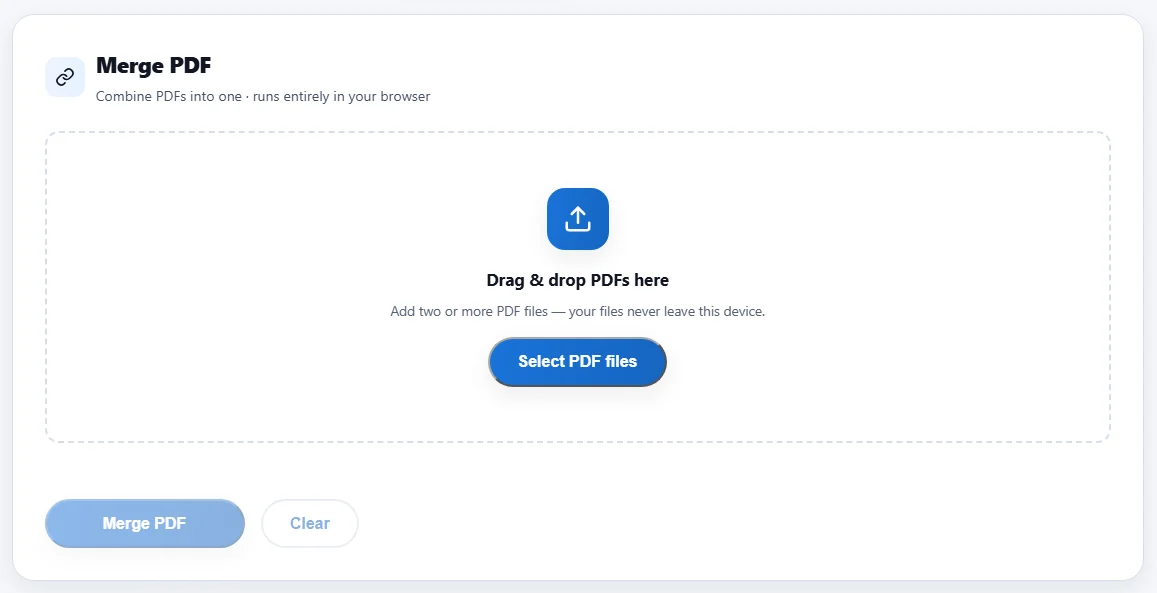
Modern browsers can read and rewrite PDFs locally, so the best web tools never send your file anywhere β€” the merge happens on your machine and the page just hands you the result. This is the sweet spot: no install, no account, and the file stays with you. In fact, our own free NasrTech PDF tools work this way β€” merge PDFs right in your browser, with nothing uploaded.

The steps are the same almost everywhere:

  1. Open the tool and drag both PDFs in (or click to select them).
  2. Reorder the files so they're in the order you want the pages to appear.
  3. Click Merge (or "Combine").
  4. Download the single PDF.

Before you trust a tool with anything private, check it says the work happens in your browser and that nothing is uploaded β€” if it's vague, treat it as an upload tool and skip it for sensitive files.

Method 2: With the tools already on your computer

You often don't need any website at all.

  • Mac (Preview): Open the first PDF in Preview, show the sidebar thumbnails (View β†’ Thumbnails), then drag the second PDF's thumbnail into the sidebar. Reorder pages by dragging, then File β†’ Export as PDF.
  • Windows: Windows has no built-in merge, but a free PDF reader or printer can help. The simplest no-install route is a trustworthy in-browser tool (Method 1). If you do this often, a small free desktop app is worth it.
  • Print to PDF trick: In many apps you can select multiple files, choose Print, and pick "Save as PDF" as the printer β€” handy for combining things that aren't PDFs yet.

Local tools keep the file on your disk the whole time, which is exactly what you want for anything you wouldn't email to a stranger.

Method 3: On your phone

Most merging happens on a laptop, but phones can do it too. A good scanner app will let you add pages to an existing document and export the whole thing as one PDF β€” so three photos of a contract become a single, ordered file. Our writeup on DocFlow, a free mobile scanner covers that workflow; the same app turns images into a PDF without a watermark.

On iPhone, the Files app can also combine PDFs: select them, long-press, and choose Create PDF.

Tidy up before (or after) you merge

A clean merge is more than gluing files end to end:

  • Order matters. Put the cover letter first, the signed page where it belongs. Reorder before you export β€” it's far easier than fixing it later.
  • Rotate sideways scans so every page reads upright in the final file.
  • Compress if it's heavy. Merged scans can get large fast; if the result is too big to email or upload, shrink it β€” see how to compress a PDF.
  • Check the page count of the final file against the originals so nothing got dropped.

Mistakes to avoid

  • Uploading sensitive files to an unknown site. The convenience isn't worth handing over a contract. Use a local or in-browser tool.
  • Merging in the wrong order, then re-doing it. Set the order first; it saves a second round trip.
  • Ignoring file size. A merged stack of scans can be too big to send. Compress before you share.
  • Trusting a "free forever" site with no privacy page. No statement about where your file goes is a statement.

Frequently asked questions

How do I merge PDFs without any software? Use a tool that runs inside your browser (Method 1) or your computer's built-in option β€” Preview on Mac, or the Files app on iPhone. None of these need an install, and the good in-browser ones don't upload your file.

Is it safe to merge PDFs online? Only if the tool processes the file in your browser and doesn't upload it. If a site sends your PDF to its server, your data is on their machine. When in doubt, merge locally β€” and read are online PDF converters safe first.

Can I merge PDFs on my phone? Yes. On iPhone, select the PDFs in the Files app and choose Create PDF. On Android, a scanner app like DocFlow can add pages to one document and export a single PDF.

Will merging reduce the quality of my PDFs? No. Merging just places the pages together; it doesn't re-compress them. Quality only changes if you separately compress the file afterward to shrink its size.

The bottom line

Merging PDFs is a 60-second job, and you almost never need to upload your file to do it. Start with what's already on your device β€” Preview on Mac, the Files app on iPhone, a scanner app on Android β€” and reach for an in-browser tool only when it clearly keeps the file local. Set the page order first, compress the result if it's heavy, and your three loose PDFs become one clean document that's ready to send.