

Someone asks for page 3 of your contract — page 3, not all 40 pages with your bank details on page 12. Or a single 200-page scan needs to become one file per chapter before you upload it. Splitting a PDF is how you hand over exactly what's needed and nothing more — and you can do it in under a minute without sending the whole file to a website you don't control.
Extract or remove: the same job from two sides
Two requests lead here and they are the same operation. "Send me page 3" means extract page 3 into a new file. "Take out the page with the bank details" means keep everything except that page. Every tool below works either way: you name the pages to keep, or the pages to drop, and the result is a new PDF. The original is untouched, which is the point: always work from a copy and keep the full document.
The part that needs care is the page numbering. The number printed on a page and the page's position in the file differ whenever there is a cover or a blank. Count from the file's own page thumbnails, and open the result before you send it.
With what is already on your device
- Mac (Preview): open the PDF, show thumbnails (View → Thumbnails), select the pages you want (hold Cmd to pick several), then drag them to the desktop; macOS makes a new PDF from just those pages. To remove pages instead, select them, press Delete, and File → Export.
- Windows: open the PDF, choose Print, enter only the pages you need (
3, or3-7), and pick Microsoft Print to PDF as the printer. You get a new PDF with that range. - iPhone and Android: open the PDF, use Print, set the page range, then Save to Files or Save as PDF. The printout is a fresh, shorter PDF.
Print-to-PDF is the most universal way to pull a range out of any document, and the file never leaves the device. Its limit: the output is a printed copy, so links and form fields in the original do not survive.
In the browser, without uploading
The Split PDF tool on this site keeps the file in the browser and keeps the pages as pages, so text stays selectable.
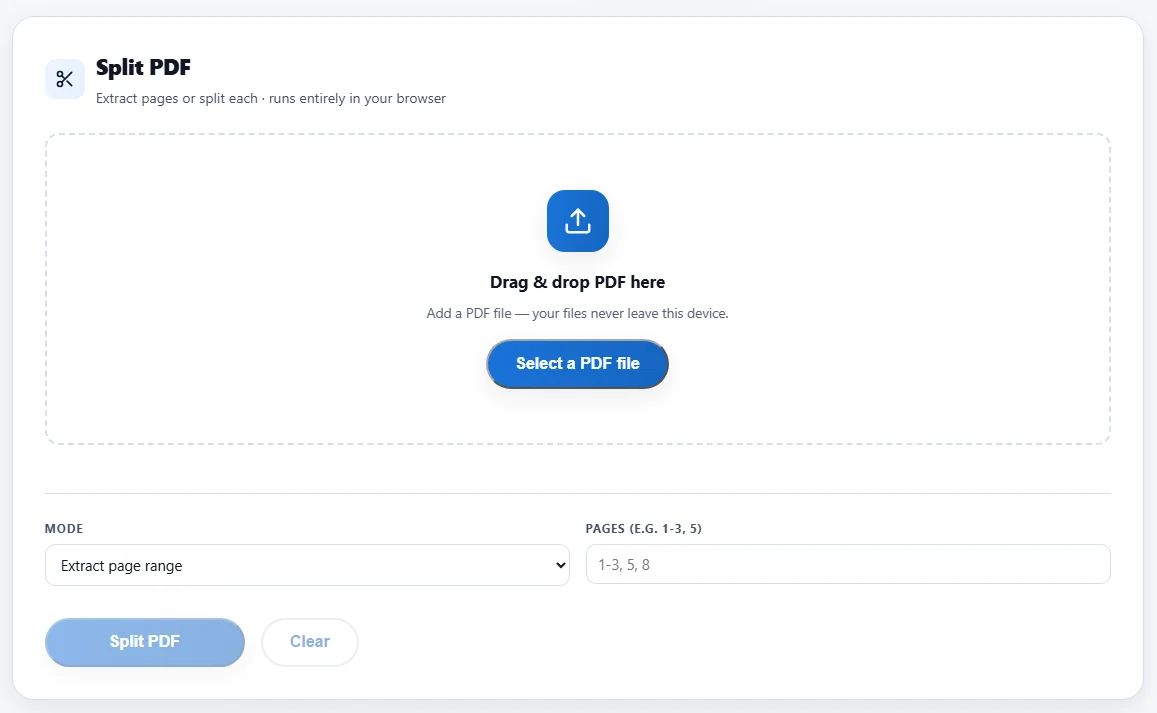
- Drag the PDF in or click Select a PDF file.
- Choose the mode: extract a page range, or split the document into one file per page.
- For a range, type it the way the field shows:
1-3, 5, 8. - Click Split PDF and download the result. Several files come as a ZIP.
If you end up with too many pieces
Splitting a big scan into parts often ends with some of them needing to go back together; how to merge PDF files covers that direction. A split file that is still too heavy to send is a compression job: how to compress a PDF.
Before you send the pages
- Name the output clearly.
contract-signature-page.pdfbeatsdocument(3).pdfwhen you are attaching it under pressure. - Open it and count. Confirm the pages are the ones you meant, and only those. The reason to split was to share less.
- Keep the original. Split from a copy so the full document stays intact.