

A photo of your ID is not a scan of your ID. Anyone who has submitted one to a bank, a landlord, or an HR department knows the difference: the photo comes back rejected for being tilted, shadowed, or missing the back side, and you do the whole thing again.
An ID card scanner solves a very specific set of problems that a camera does not: it crops to the card's edges, flattens the perspective, cleans the lighting, and — crucially — puts both sides on a single page in one PDF. That last part is what most offices actually ask for.
What a proper ID scan looks like
Whoever receives your file is checking for four things:
- Both sides, one file. Front and back on the same page, or at least in the same PDF. Two separate photos in an email is what gets bounced.
- Cropped to the card. No desk, no fingers, no background.
- Readable text. The number, the name, and the dates must be legible after compression.
- Straight and evenly lit. No keystone distortion from holding the phone at an angle, no glare across the hologram.
A scanner app handles all four automatically. A camera app handles none of them.
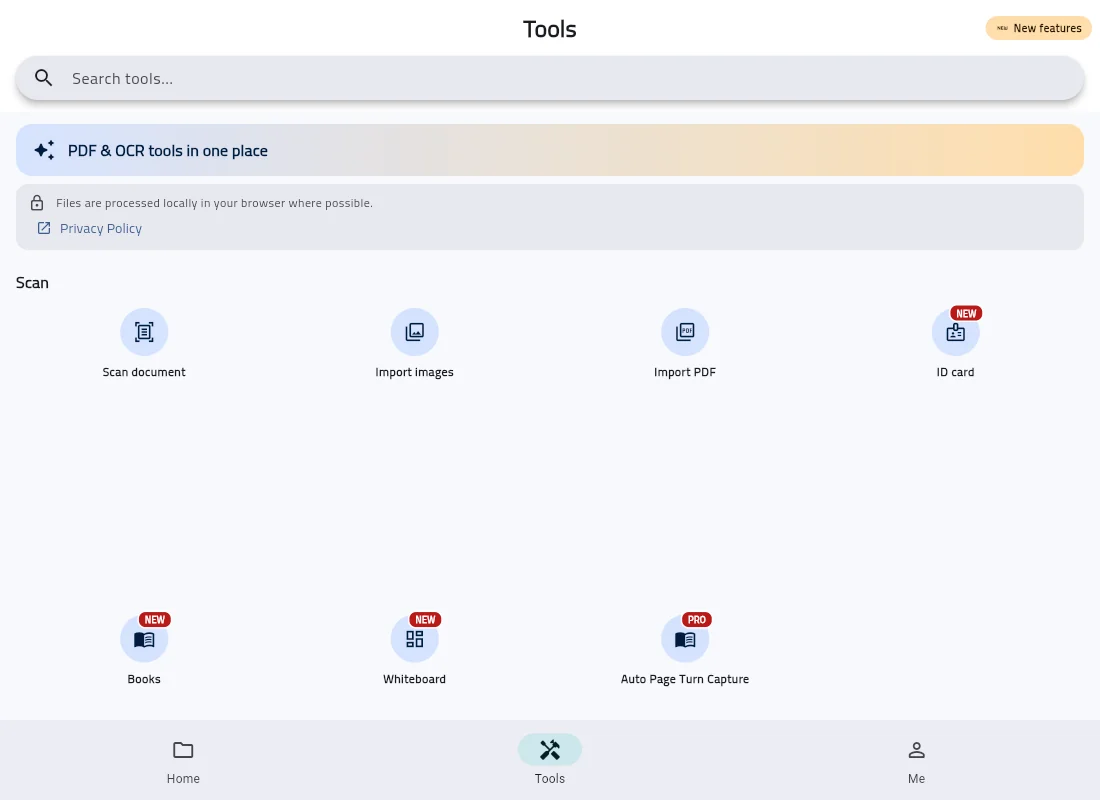
How to scan an ID card in three steps
- Put the card on a dark, flat surface. Contrast helps edge detection find the card. Avoid glossy tables that bounce light back into the lens.
- Capture the front, then the back. In DocFlow Scanner you shoot both sides and it lays them onto one page for you. Hold the phone parallel to the card rather than leaning over it.
- Check, then export to PDF. Zoom in on the ID number before you send. If it is fuzzy, retake it — no amount of processing recovers detail that was never captured.
The whole thing takes under a minute once the card is on the table. In DocFlow, scanning the card and keeping it in the app is free; exporting, sharing or printing the PDF is part of DocFlow Pro, a paid subscription or one-time purchase.
Why "on-device" matters more here than anywhere else
Most free scanner apps and web converters upload your file to a server to process it. For a holiday photo, nobody cares. For a government ID, you are handing a full identity document — number, date of birth, photograph, sometimes an address — to a company whose retention policy you have not read, on a server you cannot audit.
The safer approach is simple: use a tool that never uploads. DocFlow Scanner does the capture, cropping, and PDF assembly on the phone itself, so the file exists in exactly one place — your device — until you decide to send it. We went into this trade-off in more depth in are online PDF converters safe, and the answer is the same one: for sensitive documents, do not upload at all.
Watermarks, ads, and the "free" scanner trap
The other reason people replace their first scanner app is what shows up on the output. Plenty of free apps stamp a watermark across the page, cap you at a few scans a day, or wrap the export button in a full-screen ad. An ID going to a bank with a promotional watermark across it is not a document anyone will accept.
If that is where you are, the fix is choosing a scanner without those constraints — the same problem we covered in the CamScanner alternative guide, and in the five-check scanner test. For DocFlow specifically: exports carry no watermark, but exporting is a Pro feature rather than part of the free plan.
Getting the text out, not just the picture
Sometimes you need the information rather than the image — copying a number into a form, or translating a document. That is OCR, and it works on ID cards the same way it works on any printed text, provided the capture was sharp.
DocFlow Pro includes on-device OCR for Arabic and English (text recognition is not part of the free plan), which is worth knowing if you deal with bilingual paperwork; the details are in our guide to Arabic OCR. The rule stays the same: a clean, straight, well-lit scan produces good text, and a blurry one produces nonsense no matter how good the engine is.