You want to post the first page of a flyer to Instagram, but it's trapped inside a PDF β€” and Instagram doesn't take PDFs. Or a client asks for "just an image" of the invoice, not a document they have to open. Turning a PDF page into a JPG is the fix, and you can do it in seconds without handing the whole file to a random website.

The fast answer: you don't need to install anything to turn a PDF into a picture. Your phone can screenshot or export a page as an image, your computer can do it cleanly, and the good web tools convert the file inside your browser without uploading it. Here's how to get a sharp JPG of any page β€” and keep the document private.

First: does the PDF need to leave your device?

Most "PDF to JPG" guides skip the one question that matters: where does your file go? Many free converters upload the whole PDF to their server, render the images there, and hand back the JPGs. For a public flyer, fine. For an invoice, an ID, or a contract, that's your full document sitting on someone else's machine β€” so they can keep it.

A simple rule: if the PDF is private, convert it on your device or with a tool that works inside your browser without uploading. Our guide on whether online PDF converters are safe shows how to tell the difference, and free tools that don't upload your files lists the in-browser kind.

Method 1: On your computer

You usually don't need a website at all.

  • Mac (Preview): Open the PDF in Preview, then File β†’ Export. Set the Format to JPEG, pick a quality, and save. Preview exports the page you're viewing as a JPG. To export several pages, open them as separate pages first.
  • Windows: Open the PDF, choose Print, and select Microsoft Print to PDF… then convert that page β€” or, faster, open the page and use the Snipping Tool (Win + Shift + S) to capture it as an image. For many pages, a trustworthy in-browser converter (below) is cleaner.
  • Screenshot anywhere: For a single page, a screenshot is the quickest JPG you'll ever make. Just crop out the toolbar.

Method 2: On your phone

  • iPhone: Open the PDF, tap Share β†’ Save to Files, or take a screenshot of the page (it saves as an image instantly). For a cleaner export, open the PDF in the Books or Files app and screenshot full-screen.
  • Android: Open the PDF, screenshot the page, or use a scanner app that exports pages as images. Our writeup on a free mobile document scanner covers apps that handle pages as pictures.

Screenshots are the universal phone trick β€” instant, private, and good enough for sharing on social or chat.

Method 3: In your browser, without uploading

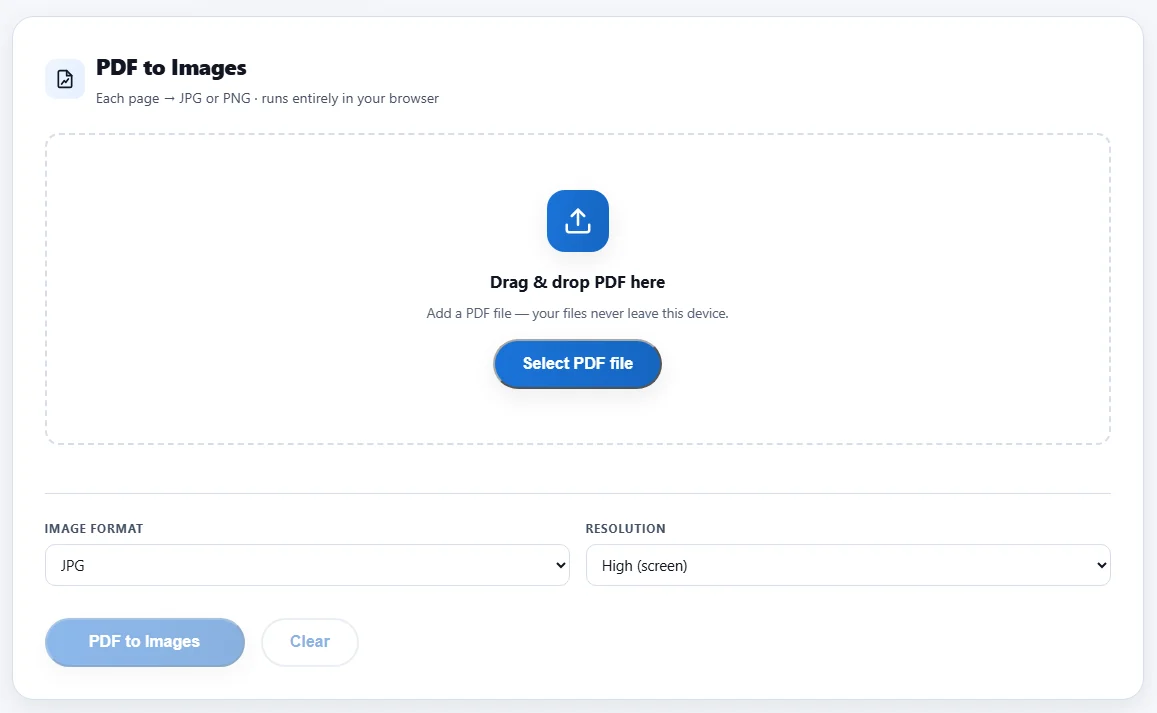
When you want every page as a crisp JPG and a screenshot won't do, a good in-browser converter renders the file on your machine and never uploads it. Our free NasrTech PDF tools include PDF-to-images conversion that runs in your browser, with nothing uploaded.

  1. Open the PDF in the tool (drag it in).
  2. Choose the pages and the image quality.
  3. Convert, then download the JPGs (often as a zip for multiple pages).

Before you trust it with anything private, check it says the work happens in your browser with no upload. If that's unclear, screenshot or use Preview instead.

Get a JPG that actually looks good

  • Match the resolution to the use. A screenshot is fine for social; for print, export at higher quality from Preview so text stays sharp.
  • JPG isn't always the best choice. For pages with sharp text or lines, PNG can look cleaner β€” our PNG vs JPG vs WebP guide explains when to pick which.
  • Shrink it if needed. A high-quality page image can be large; if you need it small for a form, see how to compress an image to 100 KB.
  • Going the other way? If you're collecting images to bundle, our merge PDF and split PDF guides cover the document side.

Mistakes to avoid

  • Uploading a private PDF to get one image. Screenshot it instead β€” it never leaves your phone.
  • Exporting at low quality for print. A blurry invoice helps no one; raise the quality for anything printed.
  • Using JPG for sharp text when PNG fits better. JPG can smudge crisp edges.
  • Trusting a converter with no privacy page. If it won't say where your file goes, assume the worst.

Frequently asked questions

How do I convert a PDF to JPG without software? Screenshot the page (Win + Shift + S on Windows, or the side-button combo on a phone), or use Preview on Mac (File β†’ Export β†’ JPEG). None of these upload your file.

Is it safe to convert a PDF to JPG online? Only if the tool renders the file in your browser without uploading it. If the site sends your PDF to its server, your document is on their machine β€” so for anything private, convert locally; see are online PDF converters safe.

Can I convert every page of a PDF to images at once? Yes β€” an in-browser converter can export all pages, usually as a zip of JPGs. On your own device, export pages one by one from Preview, or screenshot each.

JPG or PNG for a PDF page? JPG for photo-heavy pages and smaller files; PNG for pages with sharp text, lines, or logos. The PNG vs JPG vs WebP guide breaks it down.

The bottom line

Turning a PDF into a JPG is usually a screenshot or a single Export away β€” no upload required. Use Preview on Mac, the Snipping Tool or a screenshot on Windows and phones, and reach for an in-browser converter only when you need every page and it clearly keeps the file local. Match the quality to where the image is going, pick PNG when the text is sharp, and your locked-away PDF page becomes an image you can post anywhere.