

You photographed all twelve pages of a lease, opened your gallery, and found twelve separate JPGs. The agent asked for one PDF. Now you are looking at a pile of images with names like IMG_20260728_141203 and wondering how to staple them together.
This is the most common scanning problem there is, and it comes from one decision made at the start: whether you used the camera or a scanner app.
Why you end up with separate files
Your phone's camera is built to capture moments, not documents. Every press of the shutter creates an independent image file. It has no concept of "page 3 of 12" — as far as it knows, those are twelve unrelated photos that happen to be of paper.
A scanner app treats capture differently. It holds an open document in memory, adds each shot to it as a numbered page, and only produces a file when you say you are finished. The order, the cropping and the export format are all decided inside that session.
That is the whole difference. Not image quality, not filters — the fact that one produces a document and the other produces photos.
So the real answer to "how do I scan multiple pages into one PDF" is: start in something that knows what a page is. Everything else in this guide is about doing that well, or repairing it if you have already taken the photos.
Capturing several pages as one PDF
The workflow is the same in almost every scanner app, including DocFlow Scanner:
- Start a new document, not a new photo. Look for the multi-page or batch mode. In a good app this is the default, and the counter in the corner showing "1", "2", "3" is your confirmation that pages are being added rather than replaced.
- Shoot every page in order, front to back. Do not stop to fix anything yet. Cropping and rotating are faster in one pass at the end, and stopping between pages is how the order gets scrambled.
- Review the page strip before exporting. Every decent scanner shows thumbnails of the captured pages. This is the moment to spot the page you shot twice or the one that came out blurry.
- Export once, as PDF. Not as images. If the app offers "PDF" and "JPG", the JPG option is the trap that put you here in the first place.
Check what your app charges for before you start. In DocFlow, capturing the pages and keeping the document in the app are free, but exporting, sharing or printing the PDF needs DocFlow Pro.
Two things matter more than technique while shooting: even lighting and a flat page. Shadows across the middle of a page confuse edge detection more than dim light does, and a curled page produces a warped scan that no amount of correction fully fixes. Put the page on a plain surface, stand over it rather than at an angle, and let your own shadow fall away from the paper.
Getting the page order right
Page order is where multi-page scans usually go wrong, and it is worth knowing the three ways it happens.
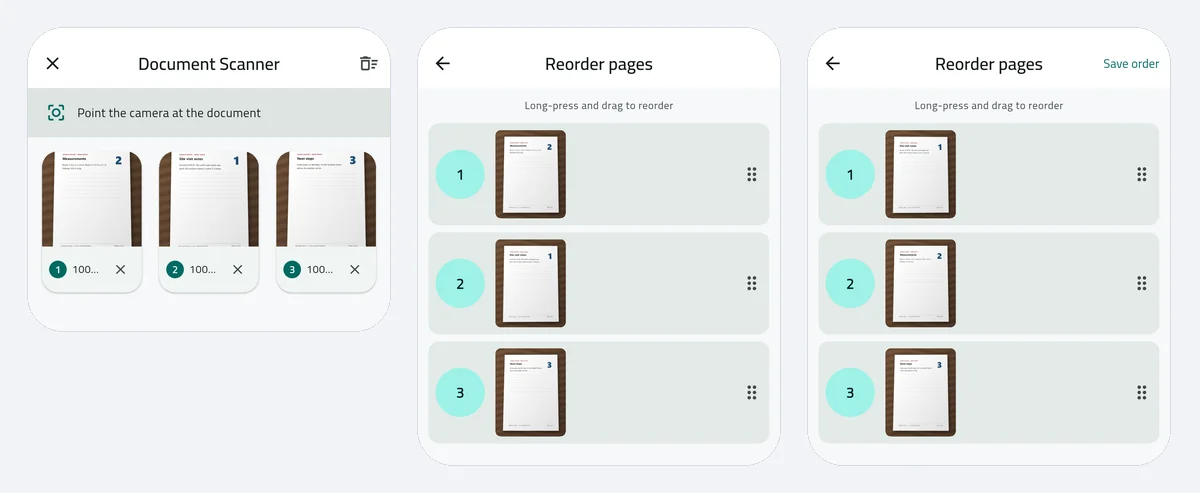
You shot them out of order. Easy to do with a stapled document you unfolded halfway through. Any scanner with a page strip lets you drag a thumbnail to a new position — fix it before exporting, because reordering a finished PDF is more work.
You scanned a double-sided document in one pass. Front sides first, then back sides, gives you all the odd pages followed by all the even ones. Either interleave them in the page strip afterwards, or scan front-back-front-back as you go.
Your app sorted by filename. This one bites when you import existing photos rather than capturing them live. Filenames sort alphabetically, so page 10 lands between page 1 and page 2. Check the strip after importing, always.
For a two-sided card there is a better path than any of this: a dedicated card mode that places both sides on a single page, which is what forms usually want. That case is covered in scanning an ID card to PDF.
If you already have the separate images
Not lost. You have two routes.
Import them into a scanner app. Most scanners let you add images from the gallery into a document, where you can reorder them and export as one PDF. You keep the perspective correction and contrast handling — the same path as converting an image to PDF.
Merge them if they are already PDFs. If each page is its own PDF rather than an image, merging is the direct answer; the steps are in how to merge PDF files.
One caution about the second route: search results for merging documents are full of upload-based websites, and a lease or a bank statement is exactly the kind of file you should not hand to a server you know nothing about. We went through why in are online PDF converters safe. Prefer a tool that processes on your device — with DocFlow you can verify that claim by turning on airplane mode and scanning anyway.
Keeping the file small enough to send
A twelve-page scan at full camera resolution can be too large for an email attachment, and portals are stricter still.
Three things bring it down without making the text unreadable:
- Scan in the app's document mode rather than full-colour photo mode. Document mode flattens the background to white and keeps the text sharp, which compresses far better than a photograph of paper.
- Do not scan at maximum resolution out of habit. Text stays perfectly legible well below what your camera can capture.
- Compress the finished PDF if it is still too big — see how to compress a PDF.
Watch out for the other thing that gets scans rejected: a watermark stamped across the export by a free app. It looks fine on your screen and unprofessional to a landlord or an employer. Which apps do it, and how to avoid it, is in the CamScanner alternative guide.
Two questions that come up
Can I add a page to a PDF I already exported? In most scanner apps, yes: reopen the document and keep adding pages. If the app has already closed it, scan the extra page on its own and merge the two files.
Why is my scan sideways? The app kept the phone's orientation from the moment of capture. Rotate the page in the page strip before you export; rotating afterwards means editing the PDF instead.
For a scanner that does multi-page capture, reordering and OCR without an account and without uploading your pages, that is what DocFlow Scanner is built for. Scanning is free; the PDF export and OCR are part of DocFlow Pro, a subscription or one-time purchase. If you are still choosing an app, the five-check scanner test takes a minute.