

A screenshot taken on a current phone is 1080 × 2400 pixels. Upload it to Google Play and the console rejects it: the ratio is 2.22:1, and Play allows at most 2:1. That one mismatch is behind most "invalid screenshot" errors, and the fix is a crop to 1080 × 1920. The rest of the spec is just as specific, so here it is in one place.
Every Google Play image size, in one table
The numbers below come from the Play Console help page on preview assets. Sizes are in pixels.
| Asset | Size | Format | Notes |
|---|---|---|---|
| App icon | 512 × 512 | 32-bit PNG with alpha, up to 1 MB | The store icon, uploaded to Play Console — not the launcher icon inside the APK |
| Feature graphic | 1024 × 500 | JPEG or 24-bit PNG, no alpha | Required for promotion placements and the video header |
| Phone screenshots | 2 to 8 images, each side 320 to 3840 px | JPEG or 24-bit PNG, no alpha, up to 8 MB each | The help page allows up to 2:1; the upload slot in Play Console asks for 16:9 or 9:16 (checked 3 October 2026) |
| 7-inch tablet screenshots | up to 8, same limits | same | Optional, but the tablet listing looks empty without them |
| 10-inch tablet screenshots | up to 8, same limits | same | Same |
| Promo video | YouTube URL | — | Optional; public or unlisted, no ads |
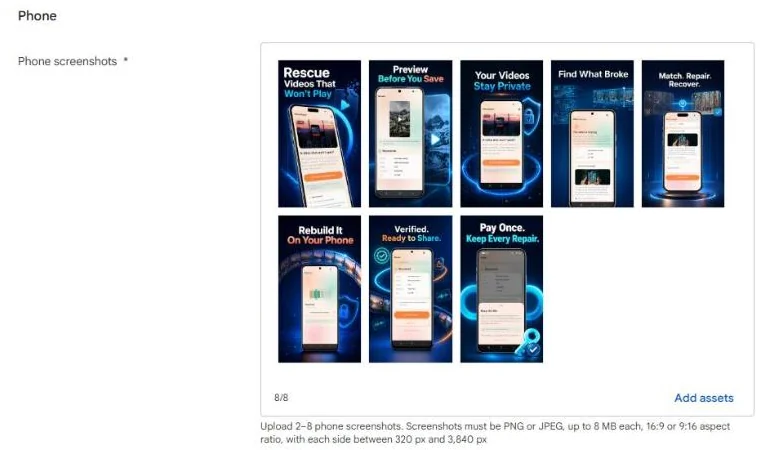
Two practical defaults cover almost every app: 1080 × 1920 for phone screenshots (9:16, well inside every limit, and sharp on any store surface) and 1024 × 500 for the feature graphic. For tablets, 1200 × 1920 (7-inch) and 1600 × 2560 (10-inch) are common 16:10 choices.
The 2:1 ratio rule, and why raw captures fail it
Play's help page states the screenshot limit as a ratio, not a fixed size: the longer side may be at most twice the shorter side. The upload slot in Play Console is stricter in its wording and asks for 16:9 or 9:16 (checked on 3 October 2026), so 9:16 is the safe target. Phones stopped being 16:9 years ago. A Pixel-class emulator captures at 1080 × 2400 (20:9 = 2.22:1); many devices capture at 1080 × 2340 or 1080 × 2412. All of them are over 2:1.
You have three ways to fix a 1080 × 2400 capture:
- Crop it to 1080 × 1920. Keep the top, the middle or the bottom, whichever holds the content. Lossless, and the usual choice.
- Pad it to 1080 × 1920 on a background. Keeps every pixel of the capture, but the image shrinks and the padding must be designed, not just black bars.
- Compose it on a 9:16 canvas: device frame, headline, background — the way most listings on Play look today. The capture sits inside a phone frame, so its own ratio no longer matters.
Option 3 is what a store screenshot is supposed to be anyway. Doing it by hand means a design app, a template, and a copy of the work for every screen and every size.
Minimums that decide whether Play promotes you
Since 2024, Play's store-listing quality guidelines add a second bar for apps that want to appear in editorial and recommendation placements: at least four screenshots, each at least 1080 px on its short side, in 16:9 or 9:16, without device frames that hide content. A listing with two 480-px screenshots is valid for publishing and invisible for promotion. If you are making the set anyway, make it at 1080 × 1920, four or more, and the feature graphic at 1024 × 500 — then both bars are cleared at once.
Icon and feature graphic: the two files people re-export three times
- The icon is 512 × 512, 32-bit PNG with transparency, no larger than 1024 KB. Play masks it to a rounded shape on the store, so keep the logo away from the corners. The full icon spec — launcher densities, adaptive layers, the safe zone — is in Android app icon sizes. For a single file, the Google Play icon resizer makes the 512 × 512 PNG in the browser.
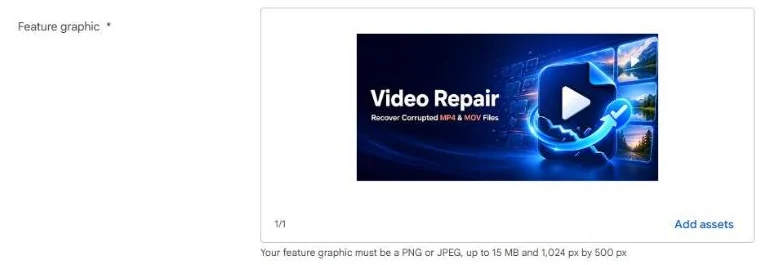
- The feature graphic is 1024 × 500 with no alpha channel. A PNG exported with transparency is the most common rejection here; flatten it. The feature graphic resizer outputs a 24-bit 1024 × 500 from any image.
Making the whole set in about a minute
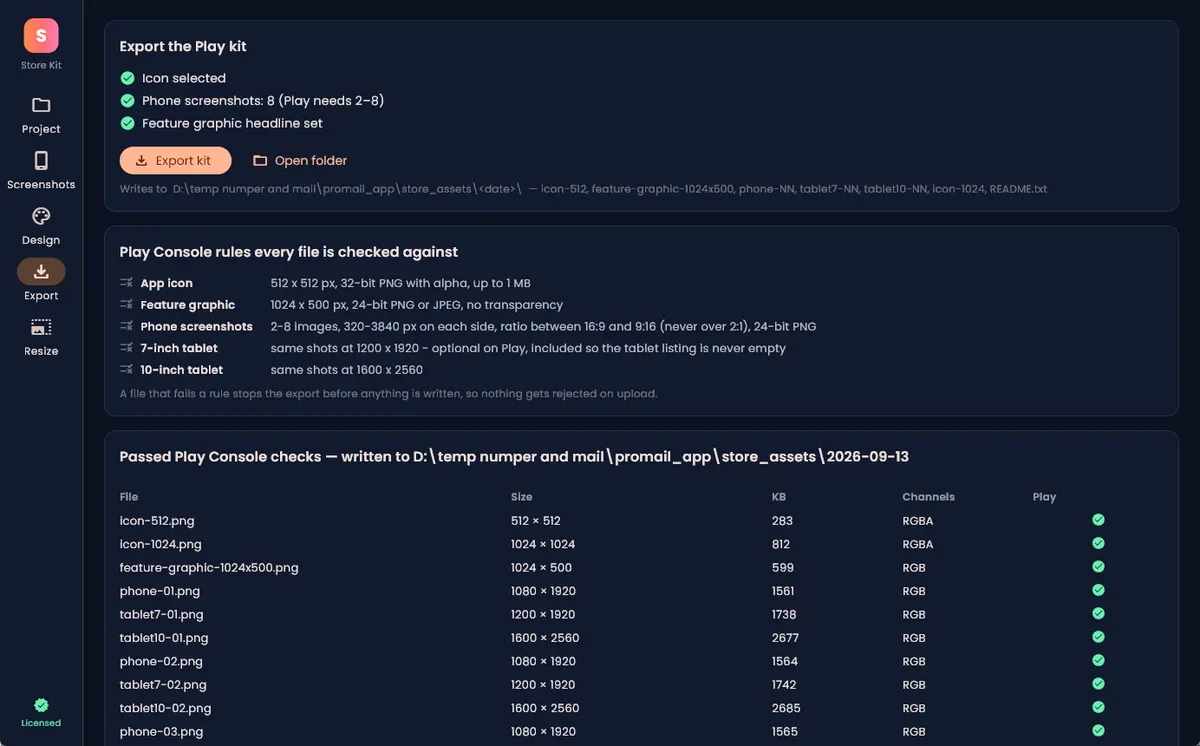
Measured on a published app (Burner & Temp Box, eight screens, five of them already captured): open the project folder 3 s, auto-capture the remaining three screens from the emulator 26 s, export 21 s. Twenty-seven files — icon 512 and 1024, the feature graphic, eight phone screenshots at 1080 × 1920, eight 7-inch and eight 10-inch tablet screenshots — every one checked against the rules in the table before it was written. That was Store Kit, a Windows app that reads the app name, icon and brand colour from a Flutter or Android project, captures the emulator for you, and composes each screenshot on a 9:16 canvas in one of ten styles with a headline it fills in from the app's category.
The point is not the tool; it is the order of work. Capture first, at any ratio the device produces. Compose second, on a canvas that already satisfies the spec. Validate every file against the numbers above before uploading. Whether you do that in a design app or in Store Kit, a listing built that way does not get rejected on size.
Only have a website so far? Make an Android app from your website first: you see it live, install a free test APK, and the Google Play version comes with a step-by-step publishing guide. If the site came from Lovable, our test shows how to turn a Lovable app into an Android app.
Pre-upload checklist
- Phone screenshots: 2 to 8, each side 320 to 3840 px, ratio 2:1 or less — ideally 1080 × 1920, four or more.
- Tablet screenshots: same limits, 1200 × 1920 and 1600 × 2560 are safe picks.
- Feature graphic: 1024 × 500, no transparency.
- Icon: 512 × 512, 32-bit PNG with alpha, under 1024 KB.
- No status-bar surprises: full battery, no notifications, a clean clock.
- Same style on every screenshot; the listing reads as one set, not eight files.