

Most animators open the Graph Editor to fix something specific — a pop, a slide, a foot that will not plant — and then spend twenty minutes fighting the panel instead of the animation. The curves are not the problem. The habits are.
Here is what changes that: treating the Graph Editor as a place to read your animation rather than a place to nudge numbers until the viewport stops looking wrong.
Read spacing, not shapes
The single most useful skill is reading spacing directly from a curve. A steep section means fast movement, a flat section means the control is holding, and the transition between them is your easing.
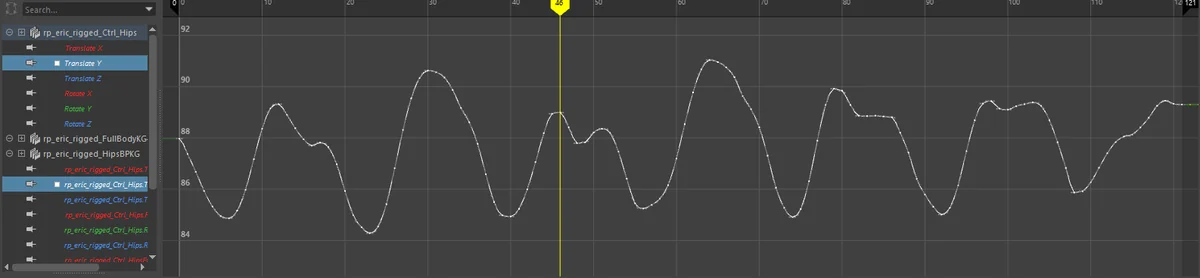
That means you can spot timing problems without scrubbing:
- A curve that ramps evenly produces mechanical, floaty motion. Real movement accelerates and decelerates.
- A flat spot you did not intend is a hold you did not plan — usually where a pop comes from when the next key arrives.
- Two keys very close together with a large value change is a snap. Sometimes deliberate, often an accident from copied keys.
Once you read curves this way, most "why does this feel wrong" questions answer themselves in a glance.
Tangents are the whole game
Tangents control how a curve enters and leaves each key, which is what your eye actually perceives as weight.
- Spline eases in and out of every key. Smooth, and the reason so much beginner animation floats.
- Linear goes straight between keys. Useful for mechanical motion, obvious when misused on a character.
- Stepped holds the value until the next key. This is your blocking mode — poses only, no interpolation lying to you.
- Flat forces a horizontal tangent, which creates a clean hold or a proper apex on a jump.
The habit worth building: block in stepped, then convert to spline and immediately go fix the curves, rather than converting and hoping. Converting to spline is where the animation stops being your poses and starts being Maya's guess at what happens between them.
Breaking the tangent handles so the in and out are independent is what lets you hit a sharp contact — a foot plant that decelerates in and holds — without softening the whole key. In the Graph Editor that is Tangents → Break Tangents; Unify Tangents joins them again so the curve passes smoothly through the key.
If every new key arrives with a tangent type you then have to change, set the default instead: Windows → Settings/Preferences → Preferences, Animation category, Default in tangent and Default out tangent. Stepped out-tangents while blocking, Auto afterwards, saves a conversion on every key.
Clean the noise instead of re-keying
Curves accumulate junk: redundant keys that sit exactly on the interpolated value, tiny jitter from a transfer or a bake, keys on channels you never touched. It makes the editor unreadable and every subsequent edit slower.
The fix is a cleanup pass rather than starting over. Removing keys that change nothing, filtering small oscillation, and deleting empty channels typically turns an unreadable graph back into something you can edit in a few seconds — the specifics are in cleaning animation curves in Maya.
This matters most after transferring animation between rigs, where baked results arrive with a key on every frame; that workflow is covered in copying animation between rigs.
Small habits that compound
- Isolate curves before editing. Showing every channel of every selected control at once is why the panel feels chaotic. Select the one or two curves you are working on and turn on Curves → Isolate Curve.
- Keep the old curve visible while you change it. Curves → Buffer Curve → Snapshot stores the current shape, and View → Show Buffer Curves draws it behind the curve you edit. Curves → Swap Buffer Curve flips between the two, which is the fastest honest before-and-after there is.
- Use the viewport as the judge, the editor as the tool. Make the edit in the curve, evaluate the result by playing it back.
- Check the motion path too. Some spacing problems are far easier to see in space than in a curve — a motion trail shows arcs and spacing the Graph Editor cannot.
- Fix the biggest curve first. Usually the root or hips. Fixing a limb on top of a broken root is wasted work.
- Use the Dope Sheet for timing. The two editors answer different questions: the Dope Sheet is for moving keys around in time, the Graph Editor for what happens between them.
Where a toolkit helps
Nothing above requires a plugin — it is technique. What a toolkit changes is the number of clicks between having the thought and executing it.
Disclosure: AnimKit is my own paid Maya toolkit, and this is the part of it that touches the Graph Editor.

The tangent buttons act on the keys selected in the Graph Editor, or on every curve of the selected controls when no keys are picked, so converting a blocked pose is one click instead of a menu. Ease In and Ease Out reshape a run of selected keys (at least three) along an ease curve. Reduce thins keys only inside a selection or a highlighted range. None of it does anything the Graph Editor cannot; it shortens the trip.
For the tweening side specifically — setting breakdowns between two poses without touching the curves — see Tween Machine and its alternatives, and the wider landscape is in the best Maya animation plugins roundup.